Parent & student portal (included)
When you enable the portal, parents access fees and pay via MoMo, view report cards, and receive announcements from their phone browser. No app store download needed.
How parents get access
School sends invite link
Your office staff creates portal access for each parent. They get a unique link via SMS or WhatsApp.
Parent opens link
Link opens in their phone browser (Safari, Chrome, etc.). They create a password on first visit.
Add to Home Screen
Parent taps "Add to Home Screen" in browser menu. TavlaHub icon appears. Works like a native app.
Why no App Store or Play Store?
Web apps work everywhere. No download, no version mismatch, no "update required" blocks.
Works on any phone
iPhone, Android, old feature phone with browser — all supported.
No storage space needed
Parents with full phone memory can still use it.
Always latest version
We update it. Parents don't have to do anything.
Fast to deploy
No app store review wait. We fix bugs and ship same day.
What parents can do
Real parent portal UI — see what your parents will use
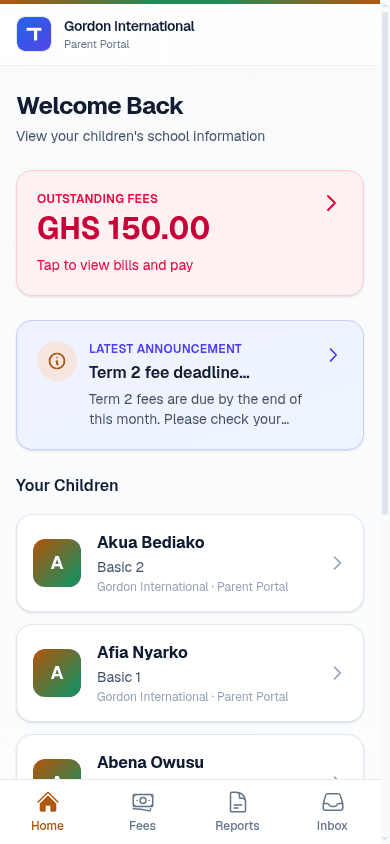
🏠 Home
- •Outstanding fees banner
- •Linked children cards
- •Latest announcement
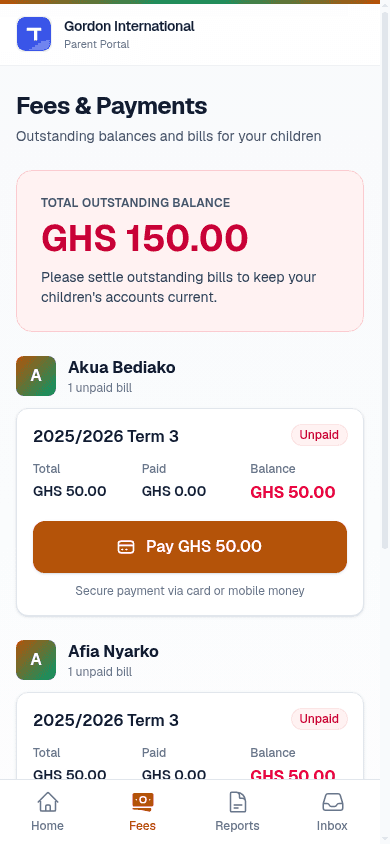
💳 Fees
- •All term bills per child
- •MoMo pay button
- •Payment history & receipts
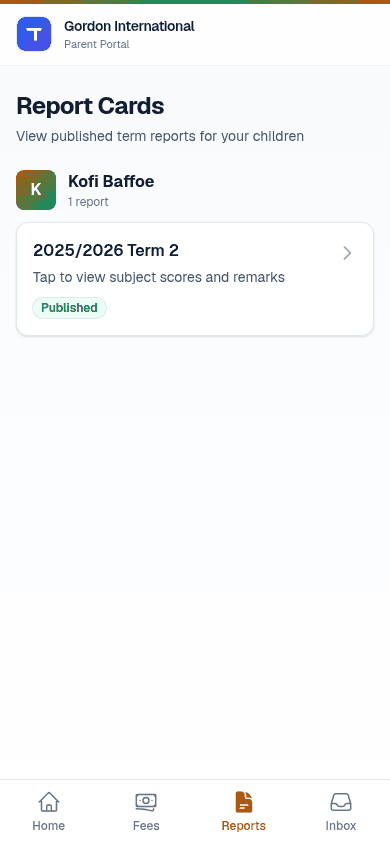
📄 Reports
- •Published report cards
- •Subject grades breakdown
- •Teacher remarks
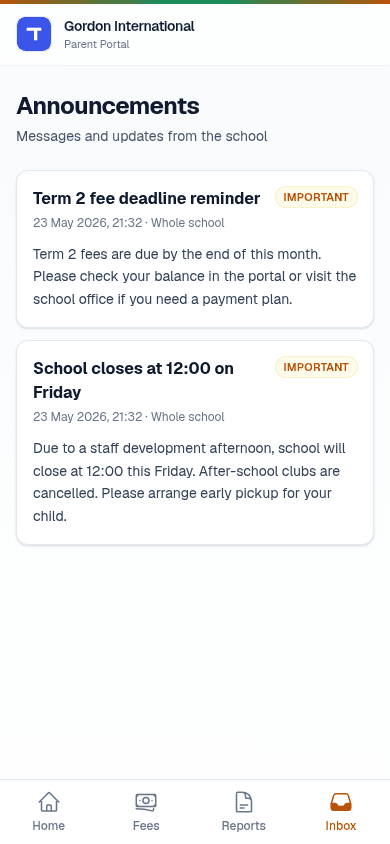
📬 Inbox
- •School announcements
- •Important notices
- •Searchable history
Note: These are real production screenshots from the parent portal. Parents access this exact interface on their phone browser.
Each parent sees only their children
Portal access is scoped by your office. Parent accounts are linked to specific students only. They cannot see other children's data.
Read about security & privacyHow to "Add to Home Screen"
Makes the app feel native. One-tap access from the home screen.
iPhone (Safari)
- 1.Open https://tavlahub.app/p in Safari
- 2.Tap the Share icon (square with arrow) at bottom
- 3.Scroll and tap "Add to Home Screen"
- 4.Tap "Add" — TavlaHub icon appears on home screen
Android (Chrome)
- 1.Open https://tavlahub.app/p in Chrome
- 2.Tap the three-dot menu (⋮) at top-right
- 3.Tap "Add to Home screen" or "Install app"
- 4.Tap "Add" — TavlaHub icon appears on home screen
See the parent portal in action
Request a walkthrough to see how parents pay fees and view report cards.
Request a walkthrough